


Most businesses are sitting on a goldmine of wasted time. Approval emails that take three days. Data is copied manually between systems. Reminders that only get sent when someone remembers. Microsoft Power Automate can fix all of it, without writing a single line of code.
In this guide, we’ve rounded up the 10 Power Automate flows that deliver the most immediate ROI for businesses of all sizes, and we’ve backed them up with real results from our work with clients. Whether you’re just getting started or looking to scale, these are the flows you should have live right now.
Each flow includes the business problem it solves, how it works, and the tools it connects, so you can prioritise based on what matters most to your organisation.
What Is Power Automate (And Why Does It Matter)?
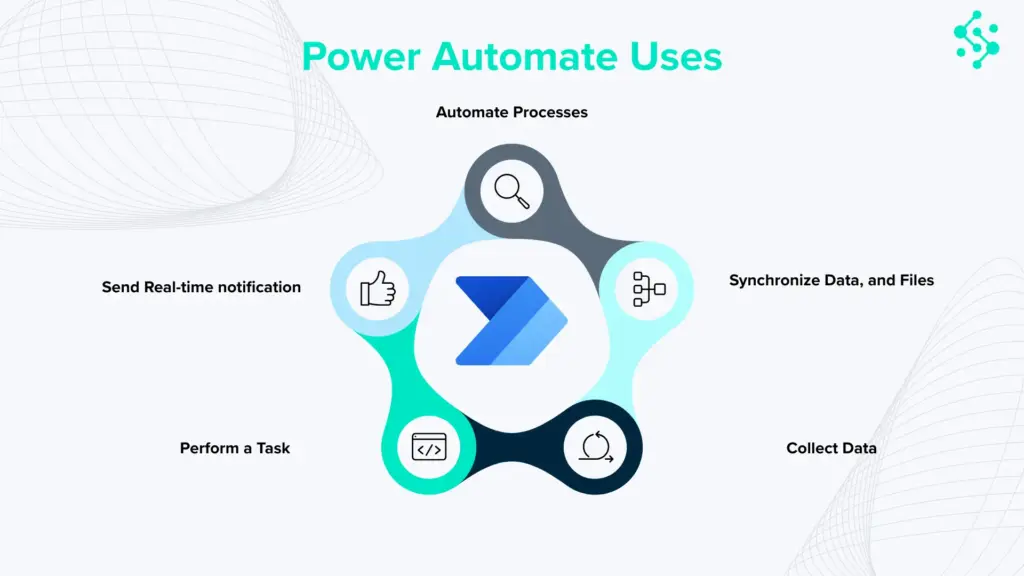
Power Automate is Microsoft’s cloud-based automation platform. It lets you create automated workflows called flows that trigger actions across your Microsoft 365 apps, third-party tools, and internal systems.
It connects with over 900 connectors including SharePoint, Teams, Outlook, Dynamics 365, Salesforce, ServiceNow, and more. For businesses already in the Microsoft ecosystem, it’s one of the fastest ways to unlock real operational efficiency.
1. Automated Approval Workflows
The Problem It Solves
Manual approval processes, purchase requests, leave applications, and contract sign-offs are black holes for productivity. Emails get lost, approvers forget, and nobody knows the current status.
How It Works
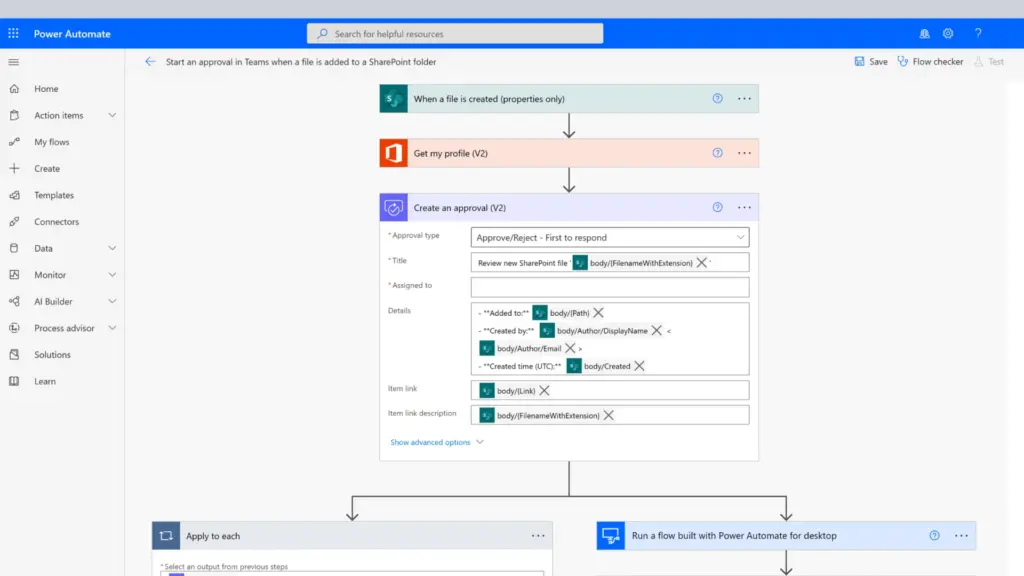
A form submission or SharePoint list update triggers the flow. It routes the request to the correct approver via Teams or email, tracks the response, notifies the requester of the outcome, and logs everything to SharePoint or Dataverse.
Business Value
- Reduces approval cycle times from days to hours
- Creates a full audit trail automatically
- Works across leave, procurement, expenses, and more
Tools: Power Automate Approvals, SharePoint / Dataverse, Microsoft Teams, Outlook
2. New Employee Onboarding
The Problem It Solves
Onboarding a new employee involves dozens of tasks across HR, IT, and line managers. When it’s all manual, things fall through the cracks, and new starters get a poor first impression.
How It Works
When a new starter is added to SharePoint or an HR system, the flow triggers a chain of actions: IT is notified to provision accounts, the manager receives a checklist, welcome emails are sent, and Teams channels are set up automatically.
Business Value
- Consistent onboarding experience every time
- Saves HR teams 2–3 hours per new hire
- Reduces IT provisioning delays
Tools: SharePoint / HR system, Outlook, Teams, Azure AD / Entra ID
3. Automated Data Processing & File Formatting
The Problem It Solves
Teams that work with recurring data files, financial reports, Excel workbooks, and CSV exports often spend significant time every day doing the same manual formatting and upload tasks. It’s repetitive, error-prone, and adds no business value.
How It Works
When a file arrives in a shared mailbox or is dropped into a folder, Power Automate picks it up, runs an Office Script or custom transformation, uploads the formatted output to SharePoint, writes the data to the target system, and notifies stakeholders, all without any human involvement.
Business Value
- Eliminates daily repetitive manual processing
- Resilient to changes in file formats – no broken formulas
- Stakeholders notified instantly when data is ready
CLIENT STORY: LCP — Global Asset Management
A financial services client spent one hour each day manually formatting two Excel workbooks received via email for database upload. Formulas kept breaking whenever file formats changed.
Synapx implemented a Power Automate flow that triggers on email receipt, uploads the files to SharePoint, runs an Office Script to format the data, writes directly to the database, and emails stakeholders with a link to the updated workbook.
| 83% reduction in processing time | 100% accuracy — zero formatting errors |
| 0 manual interventions required | 78% faster stakeholder notifications |
Tools: Shared Mailbox, Power Automate, Office Scripts, SharePoint, SQL Database, Outlook
4. CRM Lead Notifications & Follow-Ups
The Problem It Solves
Sales teams miss leads because notifications don’t reach them in time, or follow-up tasks get forgotten in a busy pipeline.
How It Works
When a new lead is created in Dynamics 365 or Salesforce, Power Automate sends an instant Teams notification to the assigned rep, creates a follow-up task in Planner, and schedules a reminder if no action is taken within 24 hours.
Business Value
- Zero leads fall through the cracks
- Faster response times improve conversion rates
- Sales managers get full visibility without micromanaging
Tools: Dynamics 365 / Salesforce, Teams, Planner / To Do
5. Scheduled Reporting & KPI Digests
The Problem It Solves
Someone spends an hour every Monday morning pulling data from multiple sources and formatting a report that could be automated entirely.
How It Works
A scheduled flow pulls data from SharePoint, Dataverse, or SQL, compiles it into a formatted email or Teams message, and sends it to the relevant team – daily, weekly, or monthly.
Business Value
- Eliminates manual report building
- Keeps teams aligned without extra meetings
- Works for sales, ops, finance, and project teams
Tools: SharePoint / SQL / Dataverse, Outlook, Teams, Power BI (optional)
6. IT Helpdesk Ticket Routing
The Problem It Solves
IT support requests arrive via email, Teams messages, and forms, and someone has to manually triage and route each one. This creates delays, especially outside business hours.
How It Works
A Power Apps form or Teams message triggers a flow that categorises the request, assigns it to the right team member, creates a ticket in your ITSM tool, and sends the user an acknowledgement with a reference number.
Business Value
- Faster resolution times across the board
- No requests lost in inboxes
- Measurable SLA tracking becomes possible
Tools: Power Apps, Teams, ServiceNow / Jira / SharePoint, Outlook
7. Contract & Document Expiry Alerts
The Problem It Solves
Contracts, insurance policies, software licences, and compliance certifications all have expiry dates. Missing them can mean legal exposure, service interruptions, or failed audits.
How It Works
A scheduled flow checks a SharePoint list daily. When an expiry date is within 30, 14, or 7 days, it alerts the document owner and their manager with a direct link to the file and renewal instructions.
Business Value
- Eliminates the risk of missed renewals
- Simple to set up — one SharePoint list is all you need
- Works for legal, procurement, IT, and compliance
Tools: SharePoint, Outlook, Teams
8. Leave Calendar Integration
The Problem It Solves
Teams using third-party leave management tools often struggle to surface that data inside their main workspace, meaning managers have to switch between apps to see who’s off and when.
How It Works
Power Automate retrieves leave data from your HR or leave management tool via an HTTP connector or webhook, syncs it to Dataverse, and a Power Apps calendar embedded in SharePoint displays it in a colour-coded, real-time view, with no need to leave the intranet.
Business Value
- Single source of truth for leave visibility
- Real-time updates via webhook — always current
- Fully customisable display to match your branding
CLIENT STORY: LCP — UK Asset Management
The client needed their Timetastic leave data displayed in SharePoint, colour-coded by leave type, in the correct employee order, with current-day and weekend markers. No pre-built connector existed.
Synapx designed a Dataverse table for leave records, used Power Automate to sync Timetastic data via HTTP GET and webhook, then built a custom Power Apps calendar embedded directly into the client’s SharePoint intranet, replicating the Timetastic experience without leaving Microsoft 365.
| 100% reduction in manual effort | 50% faster report generation |
| 95% improvement in data accuracy | 70% increase in user engagement |
Tools: Power Automate, Power Apps, Dataverse, SharePoint, Timetastic API (HTTP connector)
9. Meeting Follow-Up & Action Item Tracker
The Problem It Solves
Meetings end with action items noted in a chat or a notebook, and then promptly forgotten. No ownership. No deadline. No follow-through.
How It Works
After a Teams meeting, Copilot or a form captures action items. The flow creates tasks in Planner, assigns them to the relevant people, posts a summary to the meeting channel, and sends each assignee a direct message.
Business Value
- Every meeting ends with accountable, trackable tasks
- Reduces follow-up meetings about follow-up meetings
- Integrates naturally into Teams-first organisations
Tools: Microsoft Teams, Planner / To Do, Copilot (optional), Outlook
10. Customer Feedback Collection & Routing
The Problem It Solves
Customer feedback arrives via email, surveys, and support tickets, and rarely reaches the people who can act on it. Negative feedback, especially, tends to sit unread until it’s too late.
How It Works
When a customer submits feedback via Microsoft Forms, a website form, or email, the flow logs it, scores sentiment using AI Builder, and routes it accordingly: low scores trigger an immediate alert to the account manager; high scores are added to a testimonials tracker.
Business Value
- Issues are flagged before they escalate
- Positive feedback is captured and used
- Full feedback log for service improvement reviews
Tools: Microsoft Forms / Outlook, AI Builder, SharePoint, Teams, Dynamics 365
All 10 Flows at a Glance
Use this table to quickly identify which flows are the right starting point for your business.
| Flow | Best For | Time Saved | Build Effort |
| 1. Approval Workflows | All departments | Hours → Minutes | Low |
| 2. Employee Onboarding | HR / IT | 2–3 hrs per hire | Low |
| 3. Invoice Processing | Finance | Up to 80% | Medium |
| 4. CRM Lead Notifications | Sales | Same-day response | Low |
| 5. Scheduled Reporting | All departments | 1–2 hrs/week | Low |
| 6. IT Helpdesk Routing | IT Support | Faster SLA | Medium |
| 7. Contract Expiry Alerts | Legal / Procurement | Zero missed dates | Low |
| 8. Social Media Posting | Marketing | 30 min/day | Low |
| 9. Meeting Action Items | All departments | Follow-up time | Low |
| 10. Customer Feedback | Customer Success | Issues caught early | Medium |

How to Get Started with Power Automate
The best approach is to start with one high-impact flow, ideally the one that solves your most painful manual process and build from there. Most of the flows above can be built in a day with the right guidance.
Microsoft provides a library of templates inside Power Automate to help you get started quickly, and all flows can be tested in a sandbox environment before going live.
For businesses looking to scale automation across departments, working with a Power Platform specialist can significantly accelerate time-to-value and ensure your flows are built to be maintainable and secure.
“We eliminated an hour of daily manual work for our client LCP — the flow now takes seconds, with zero errors and zero intervention needed.”
Ready to Automate? Let’s Talk.
At Synapx, we help businesses across the UK design, build, and scale Power Automate solutions that deliver measurable results. Whether you want to implement one of the flows above or build a broader automation strategy, our team is ready to help.
Get in touch with our Power Platform team to discuss where automation can have the biggest impact in your business.