
AI agents are quickly becoming a core part of how businesses automate workflows and scale operations in 2026.
Microsoft Copilot Studio makes it possible to build these agents without deep technical expertise. From automating customer support to streamlining internal processes, AI agents can handle tasks that previously required significant manual effort.
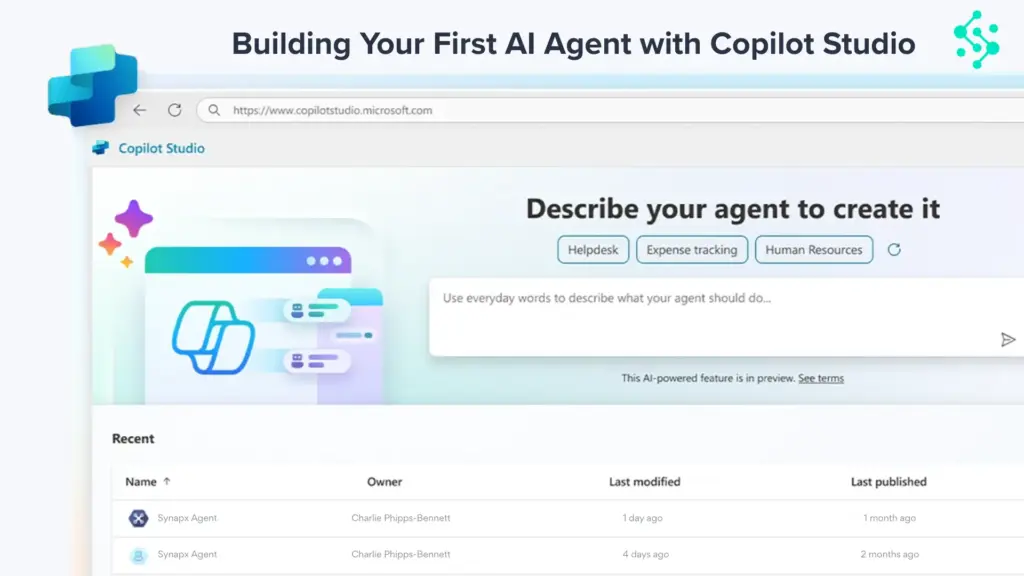
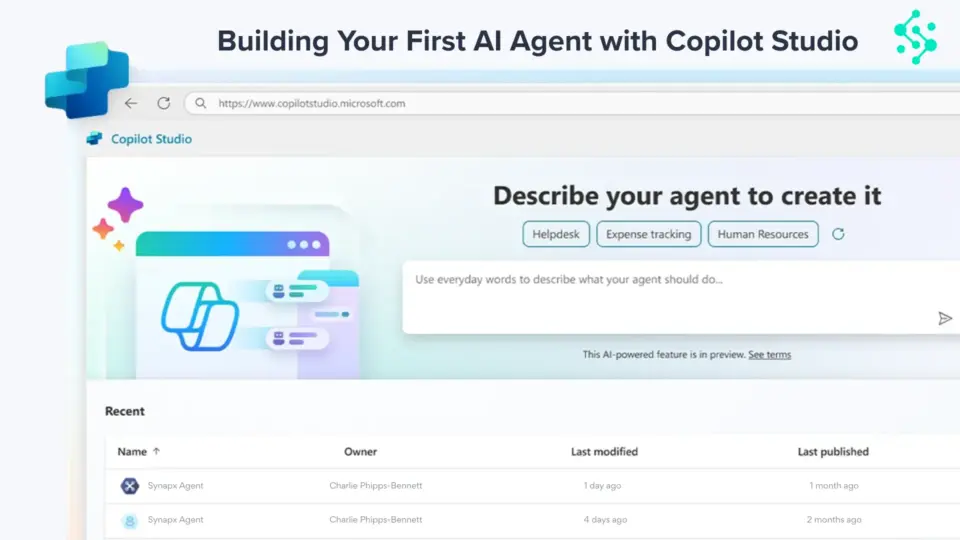
This guide explains how to build an AI agent in Copilot Studio step by step, even if you’re just getting started.
What Is Copilot Studio?
Copilot Studio is a Microsoft platform that allows organisations to build AI agents that automate workflows, respond to queries, and interact with business systems using natural language.
How to Build an AI Agent?
To build an AI agent in Copilot Studio, you define a use case, create the agent, connect data sources, design workflows, and test before deployment.
Step-by-Step: How to Build an AI Agent in Copilot Studio
Step 1: Define the Use Case
Start by identifying what problem your AI agent should solve. This could be automating customer support, handling internal queries, or streamlining a workflow.
A clear use case ensures your agent is focused and delivers measurable value.
Example: A company builds an AI agent to answer common HR questions like leave policies and payroll queries.
Step 2: Create Your Agent
In Copilot Studio, create a new agent and define its purpose. Set basic details such as name, description, and interaction type.
This step establishes how your agent will behave and what it is designed to handle.
Example: Creating an “IT Support Agent” that helps employees reset passwords and troubleshoot common issues.
Step 3: Connect Data Sources
Link your agent to relevant data sources such as documents, FAQs, or internal systems. This allows the agent to provide accurate and contextual responses.
The better your data, the more useful your agent becomes.
Example: Connecting the agent to a knowledge base so it can answer customer queries using company documentation.
Step 4: Design Workflows
Define how the agent responds by creating workflows, triggers, and actions. This includes setting up conversation paths and decision logic.
Well-designed workflows ensure smooth interactions and reduce the need for human intervention.
Example: If a customer asks about order status, the agent retrieves data and responds instantly instead of redirecting to support.
Step 5: Test and Deploy
Test your agent across different scenarios to ensure it works as expected. Identify gaps, refine responses, and improve accuracy.
Once ready, deploy the agent and monitor its performance over time.
Example: Testing how the agent handles unclear queries and improving responses before going live.
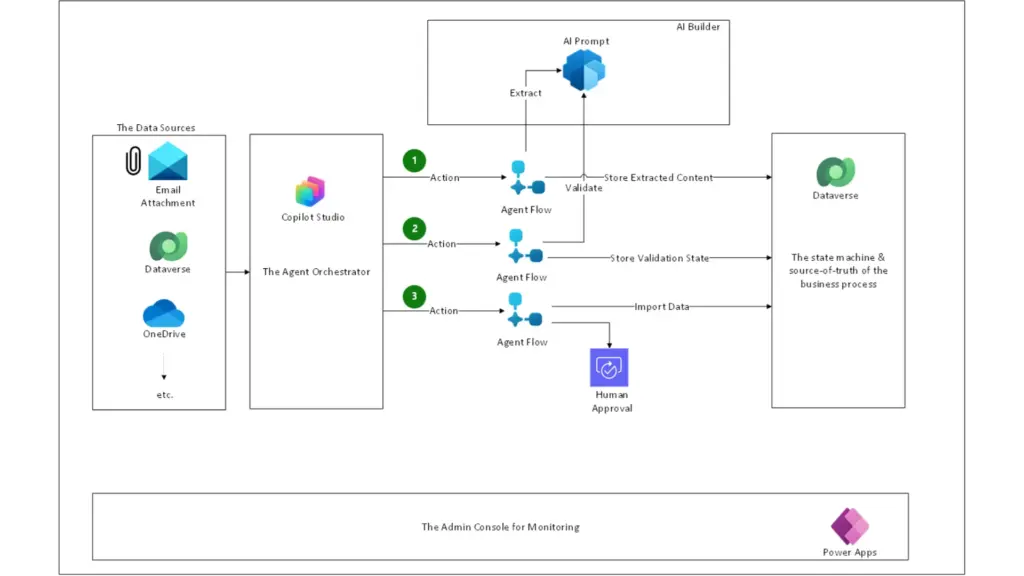
What’s Actually Changed in 2026
Copilot Studio has evolved significantly in 2026, making AI agent development faster and more accessible than ever.
It now defaults to advanced models like GPT-4.1, with newer models available for production use. The interface has also been redesigned to make it easier for business users, not just developers, to build and manage agents.
Recent updates introduced a more intuitive conversational design experience, seamless upgrades from Microsoft 365 Copilot, and integration with over 1,400 external systems. What previously required technical expertise can now be done much faster with minimal coding.
However, success doesn’t come from over-planning. Many organisations delay progress by focusing too much on governance early on.
The better approach is to start small, prove value, and then scale with the right structure.
Why Businesses Are Using AI Agents?
Businesses are adopting AI agents to improve efficiency and reduce operational overhead.
Common benefits include:
- Faster response times
- Reduced manual work
- Improved consistency
- Ability to scale operations without increasing headcount
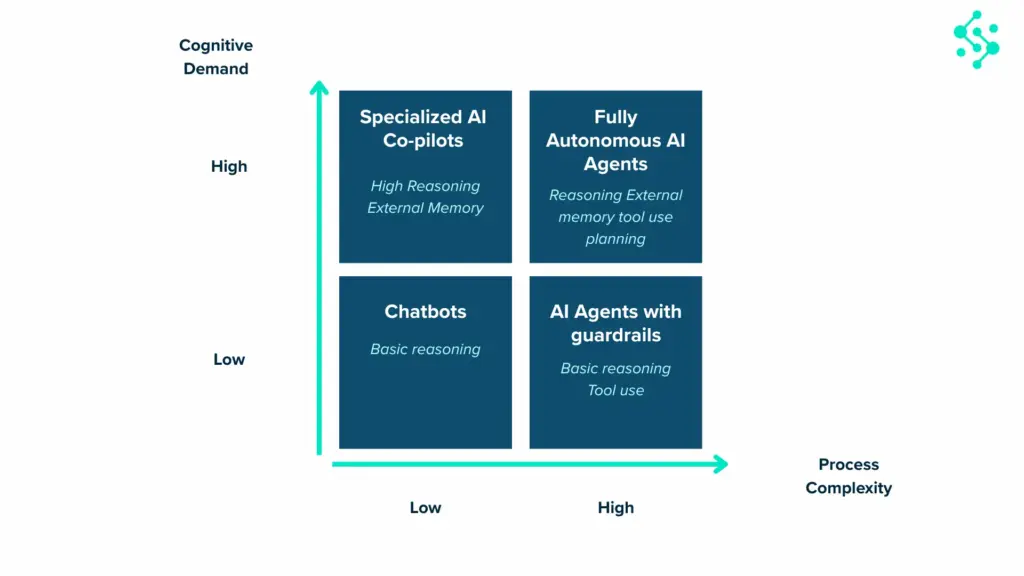
Common AI Agent Use Cases
AI agents built using Copilot Studio are used across multiple business functions.
Common use cases include:
- Customer support automation
- IT helpdesk agents
- Sales qualification and lead routing
- Workflow and approval automation
- Internal knowledge assistants
When to Use Copilot Studio
Copilot Studio is ideal for organisations already using Microsoft tools such as Power Platform, Dynamics 365, and Microsoft 365.
It is best suited for:
- Automating internal workflows
- Building business-specific AI agents
- Integrating AI into existing Microsoft ecosystems
AI agents built using Copilot Studio are becoming a standard part of modern business operations in 2026.
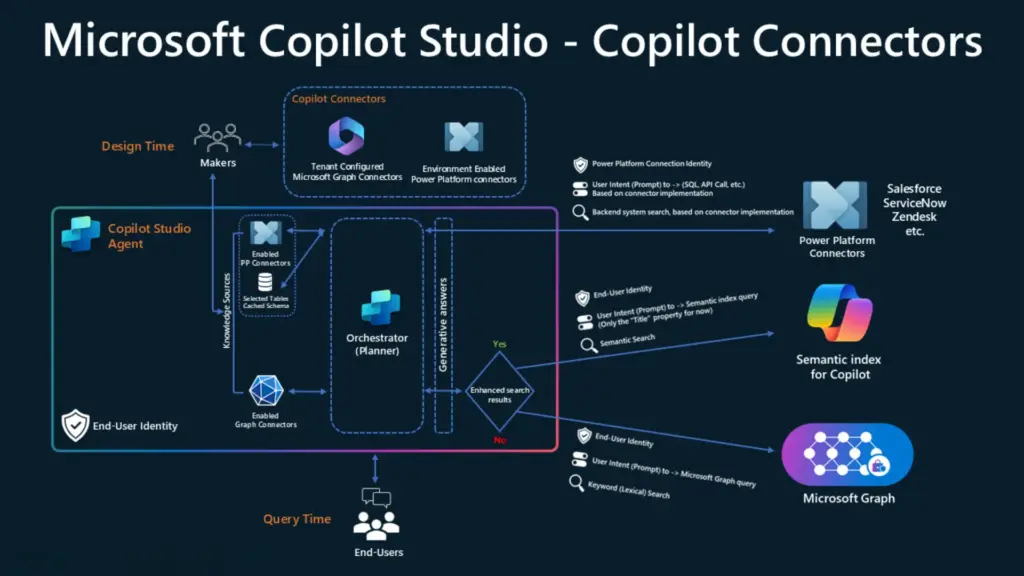
Copilot Studio Lite vs Full: Which Do You Need?
Since Microsoft introduced two tiers in late 2025, a common question is which version to use.
Copilot Studio Lite (included with Microsoft 365 Copilot) is designed for business users building simple, internal agents. It works well for use cases like helpdesks, FAQ bots, and onboarding assistants within Teams.
Copilot Studio Full is built for more advanced scenarios. It supports integrations with external systems, complex workflows, external-facing agents (websites or apps), and multi-agent orchestration.
Quick guidance:
Start with Lite if you’re building your first agent or working within Microsoft 365. Move to Full when you need more control, integrations, or scalability.
The Bottom Line
The organisations that succeed with AI agents are not the ones that invest the most in technology. They are the ones that start early, focus on clear use cases, and build momentum with small, measurable wins.
Copilot Studio has removed most of the technical barriers. What remains are business challenges – choosing the right use case, structuring data properly, and connecting the technology to real outcomes.
That’s where the difference is made.
Looking to move from experimentation to real impact with AI agents?
Synapx helps organisations design, build, and scale AI agents using Copilot Studio, Power Platform, and Microsoft Fabric.
Talk to our experts to identify the right use case and get started quickly.